How to Assess Your Microsoft 365 Security Posture
Why assess your M365 security
Most Microsoft 365 tenants ship with permissive defaults. External sharing is on. Audit logging may not be configured. Legacy authentication protocols are still allowed. MFA is recommended but not enforced for every account. These defaults make onboarding easy, but they also mean that a freshly provisioned tenant has a long list of security gaps before anyone opens Outlook for the first time.
The problem gets worse over time. Admins make changes to accommodate business requests, new features roll out with their own default settings, and conditional access policies that made sense a year ago may have blind spots today. Without regular assessments, configuration drift accumulates quietly. You don’t notice the gap until an auditor finds it, or worse, an attacker does. Running periodic security assessments catches misconfigurations, policy drift, and coverage gaps before they become incidents.
What M365-Assess checks
M365-Assess is an open-source PowerShell tool that evaluates your Microsoft 365 tenant against established security baselines, including CIS Benchmarks. It covers five major service areas:
- Exchange Online: mail flow rules, authentication policies, audit logging configuration, and transport rules that could silently forward mail externally.
- Intune: device compliance policies, conditional access enforcement, and whether unmanaged devices can access corporate data.
- Teams: external access settings, guest policies, meeting configuration, and whether anonymous users can join meetings.
- Purview: DLP policies, retention policies, and sensitivity label coverage across your data estate.
- Entra ID: MFA enrollment, conditional access policy coverage, privileged role assignments, and whether break-glass accounts are properly configured.
Every check is read-only. M365-Assess connects to your tenant, reads configuration data, disconnects, and generates a report. It does not install agents, create service principals, or modify any setting. You can run it in a client tenant with full confidence that nothing changes.
Prerequisites
Before running your first assessment, make sure you have:
- PowerShell 7 or later. M365-Assess runs on PowerShell Core (not Windows PowerShell 5.1). If you don’t have it, install from github.com/PowerShell/PowerShell.
- Required Microsoft 365 modules. The tool uses modules like ExchangeOnlineManagement, Microsoft.Graph, and others. These auto-install if they’re missing, so you don’t need to set them up manually.
- Read-only admin permissions. A Global Reader role (or equivalent read-only access across services) is sufficient. You do not need Global Admin.
- A test tenant for your first run. If you have a Microsoft 365 developer tenant or a lab environment, start there. Get comfortable with the tool and the output before running it in production or a client environment.
Running the assessment
Start by cloning the repository:
git clone https://github.com/Galvnyz/M365-Assess.gitNavigate into the project directory:
cd M365-AssessRun the assessment script. The tool will prompt you to authenticate to your Microsoft 365 tenant:
./Invoke-M365Assess.ps1During authentication, sign in with the account that has read-only access to the tenant you want to assess. The tool connects to each service area, collects configuration data, evaluates it against the baseline checks, and produces a report. Depending on the size of your tenant and the number of policies configured, the process typically takes a few minutes.
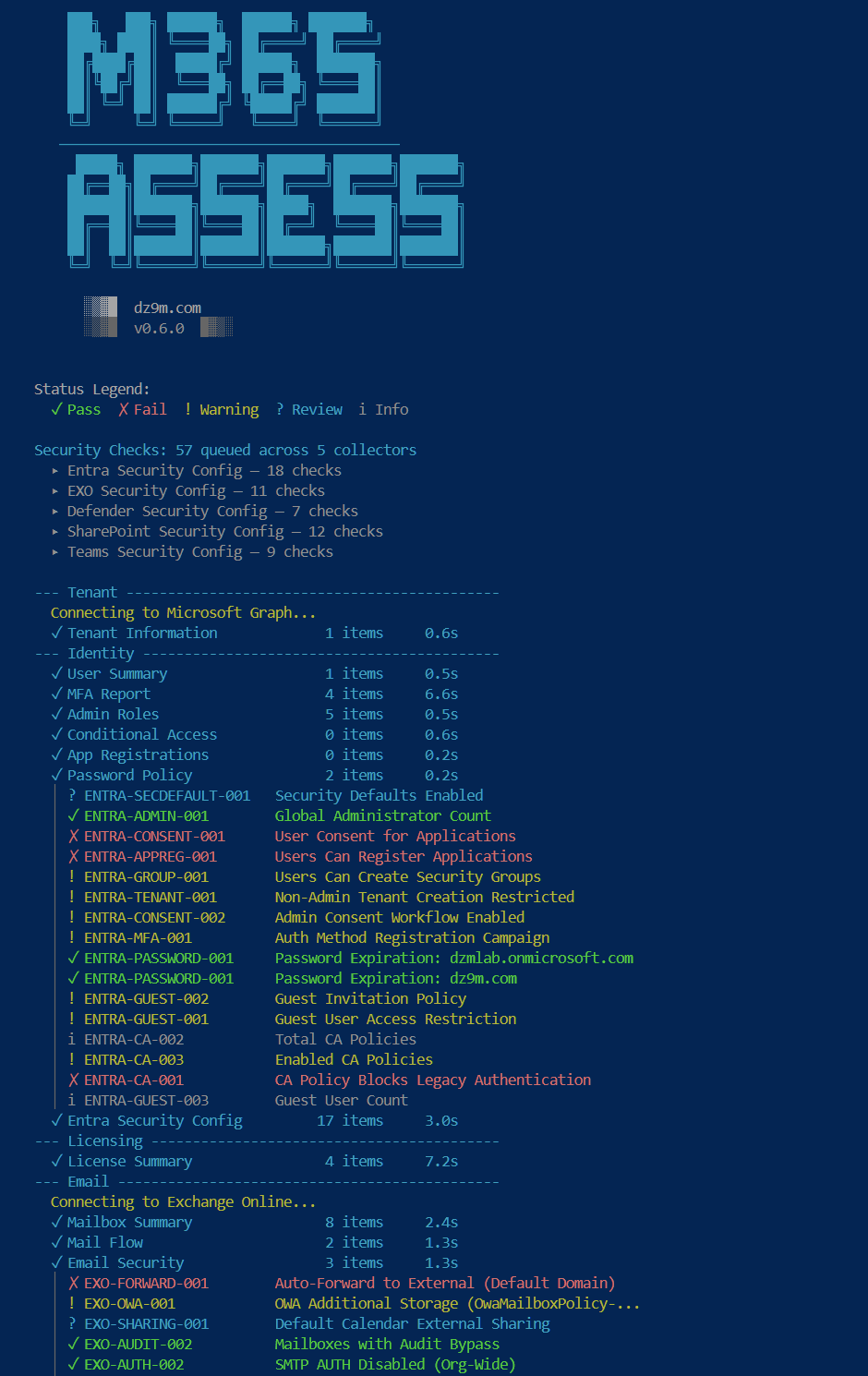
If you want to assess only specific service areas (for example, just Exchange Online and Entra ID), check the tool’s documentation for parameters that let you scope the assessment. The exact flags may evolve as the project develops, so refer to the repo’s README for the current syntax.
Reading the results
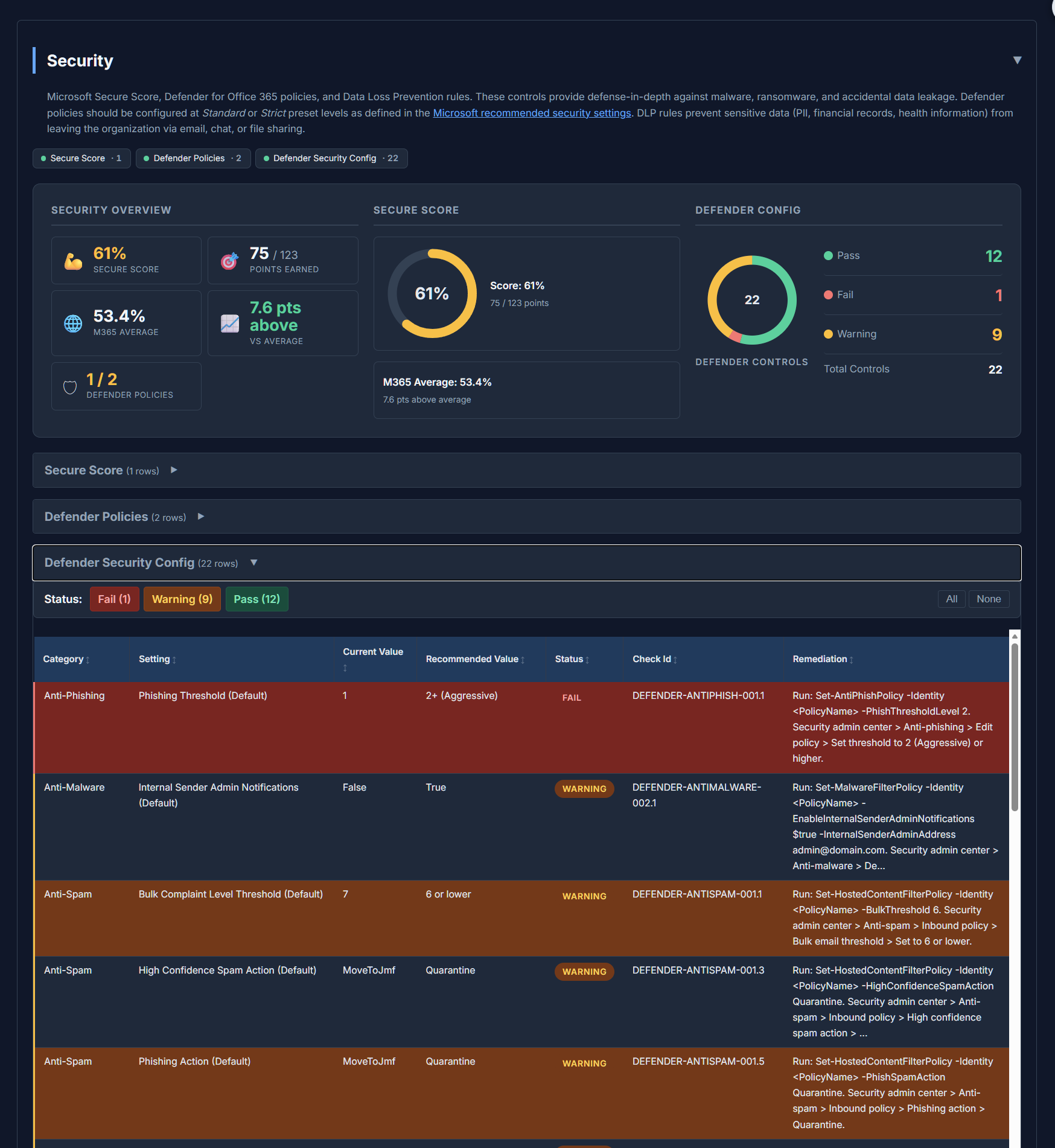
The output is organized by service area. Each finding includes the check that was evaluated, the current configuration state, and the result (pass, fail, or informational). Findings that fail indicate a gap between your current configuration and the recommended baseline. The report structure makes it straightforward to see which areas need attention and which are already aligned.
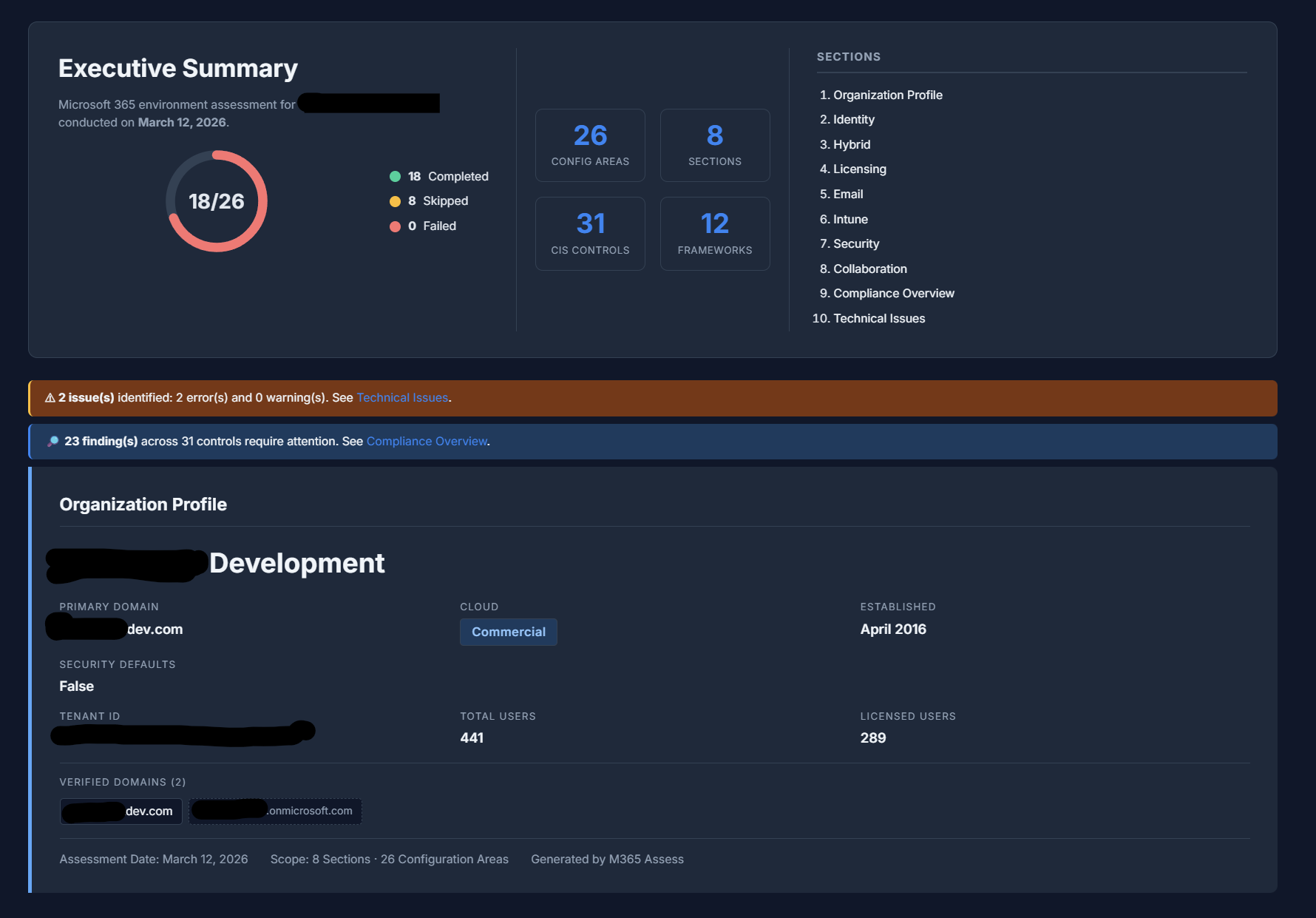
When prioritizing remediation, start with high-severity findings. MFA coverage gaps and disabled audit logging are consistently the highest-impact items, because they affect your ability to both prevent and investigate incidents. After those, focus on mail flow rules that forward externally (a common exfiltration vector) and conditional access policies with coverage gaps.
The report also maps findings across compliance frameworks, so you can see how your posture aligns with CIS, NIST, CMMC, and others in a single view.
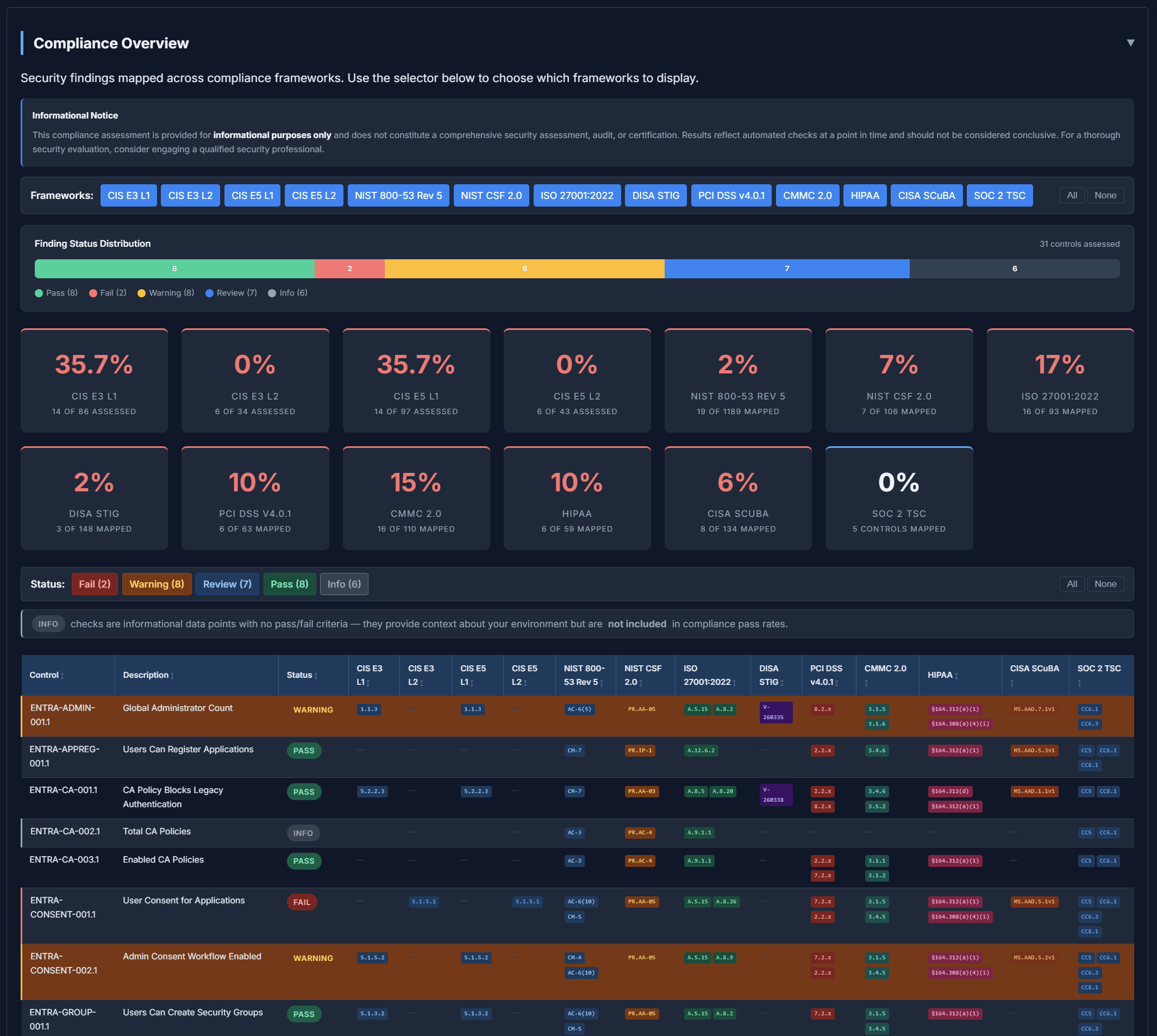
The report is designed to be something you can hand directly to a client, attach to an internal security review, or use as the starting point for a remediation plan.
What to do next
Address the high-priority findings first. Most of the checks map to specific admin portal settings or PowerShell commands, so remediation is usually straightforward once you know what to fix. For anything that requires a policy change or business decision, document the finding and the recommended action so it can be tracked through your change management process.
Schedule re-assessments on a regular cadence. Monthly is ideal for tenants with active administration, quarterly at minimum. Microsoft 365 changes constantly: new features, updated defaults, and admin changes all introduce opportunities for drift. A recurring assessment turns security posture management from a one-time project into an ongoing practice.
Finally, consider cross-mapping your findings with CheckID, Galvnyz’s universal control identifier system. CheckID maps equivalent controls across CIS, NIST, CMMC, and other frameworks. If you’re reporting against multiple compliance standards, CheckID lets you track each finding once instead of duplicating it across framework-specific spreadsheets. Pair M365-Assess with CheckID and you get both the technical assessment and the compliance mapping in a single workflow.
Get started at github.com/Galvnyz/M365-Assess.